
Two things decide almost every GMC navigation complaint, and neither is a failed part. On newer trucks running Google built-in, GM states plainly that without an active data plan the navigation app will not work at all. And there is a reset most owners have never heard of — hold the End Call button on the steering wheel for 20 to 30 seconds until the screen goes blank — that GM specifically tells dealers to teach customers.
Jump to a section: Which system do you have? · The steering wheel reset · No data plan means no navigation · GM's diagnostic order · The OnStar cross-check · Older radios and map-based nav · Frozen vs. wrong position · Causes and how to confirm each · Before you book a dealer visit · GM documents · What other pages get wrong · FAQ
Which Navigation System Does Your GMC Actually Have?
This question comes first because the three systems fail differently, are fixed differently, and share almost nothing.
Google built-in navigation. Found on newer GMC trucks and SUVs under RPO IOK. This is the Google Maps application running natively in the vehicle. It is connected software, and it depends on the vehicle's data connection.
Apple CarPlay and Android Auto navigation. Your phone is doing the work and projecting to the screen. The vehicle contributes a display and a USB or wireless link. GM's bulletin on Google built-in navigation is explicit that it applies only to the built-in Google Map application and not to CarPlay or Android Auto navigation issues — different system, different diagnosis.
Older embedded navigation. IntelliLink and MyLink era radios with onboard map data. These do not need a data connection to route, and their documented failures are software lockups and display faults rather than connectivity problems.
Almost every unhelpful piece of navigation advice online comes from applying one system's fix to another. If someone tells you to update your map SD card and your truck runs Google built-in, they are describing a different vehicle.
The Steering Wheel Reset Most Owners Have Never Heard Of
GM PIT6193B, revised May 2026, covers 2022 GMC Sierra 1500 New (RPO J22, VIN digit 5 = H or U), 2023–2026 Sierra 1500, 2024–2026 Sierra 2500 and 3500, 2022–2024 Yukon and Yukon XL, 2022–2023 Hummer EV, and 2024–2025 Hummer EV Pickup and SUV, along with the Chevrolet equivalents. All with RPO IOK.
The condition it addresses: the Google built-in navigation app is frozen, not functioning, lagging, or slow to respond.
Step 5 of the procedure is a steering wheel control reset. With the ignition on and the vehicle in park, press and hold the End Call button on the steering wheel controls for 20 to 30 seconds, until the radio screen goes blank.
GM adds a note that is unusual to see in a technical bulletin: dealers should also make customers aware of the reset procedure, especially if they find that it solves the customer's concern.
That is GM instructing its dealers to teach owners how to fix this themselves. It costs nothing, takes half a minute, and it is buried in a preliminary information bulletin most owners will never see. If your Google navigation is frozen or crawling, do this before anything else.
Battery tools
 TOPDON BT200 12V Car Battery Tester Digital Automotive
$103.99Low voltage causes nav and radio faults.
TOPDON BT200 12V Car Battery Tester Digital Automotive
$103.99Low voltage causes nav and radio faults.
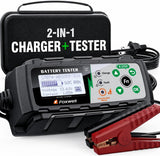 FOXWELL BC521 2-in-1 Battery Charger & Tester, Test Before
$162.35Low voltage causes nav and radio faults.
FOXWELL BC521 2-in-1 Battery Charger & Tester, Test Before
$162.35Low voltage causes nav and radio faults.
No Data Plan Means No Navigation
This is the finding that resolves a large share of "my navigation stopped working" complaints on newer trucks, and it catches people who have owned the vehicle for a couple of years.
Step 3 of PIT6193B has the technician confirm whether the customer has an active data plan, by opening the MyBrand app from the home page and checking MyPlan. GM then states it directly: if the customer does not have a data plan, Google built-in navigation will not work.
The trial data plan that came with the truck expires. When it does, the navigation app that worked perfectly for the first year or three simply stops. Nothing broke. The subscription lapsed.
GM's own workaround in the bulletin is telling — if there is no data plan, connect the vehicle to the dealer Wi-Fi network and continue diagnosis. The system needs connectivity from somewhere, and if a Wi-Fi connection restores it, you have your answer.
Before you pay anyone to look at this, check your data plan status in the myGMC app. It is the single most likely cause on a newer truck and the only one you can confirm from your phone in the driveway.
GM's Diagnostic Order for Modern Navigation
PIT6193B lays out a sequence, and it is worth following in order because each step rules out a whole category:
- Verify the concern and describe it precisely. GM asks technicians to record the specific behaviour in the customer's own words — position not updating, a Searching for GPS message, or directions that are incorrect or inaccurate. These are three different faults and they lead different directions.
- Check whether the OnStar LED is red. If it is, check for diagnostic trouble codes, and if any current code is found, follow normal service information diagnosis for that code first. A red OnStar light reframes the whole problem as a communication fault rather than a maps fault.
- Check the data plan. Covered above. No plan, no Google navigation.
- Check for a Google Maps update. GM refers to a separate bulletin, PIT6151, for this. That same bulletin is where GM sends you if the complaint is a persistent Offline icon in Maps or a "Can't connect to Google" message — those are a distinct condition with their own document.
- Steering wheel control reset. The 20 to 30 second End Call hold.
- Call OnStar and compare position. Covered below.
- Check the radio software version and update if a newer release exists.
- Contact Technical Assistance Center if the concern remains.
GM allows 0.5 hour under labor operation 3486138 to verify navigation concerns and perform these steps, and notes the work may fall under bumper-to-bumper coverage. Check Investigate Vehicle History for your warranty status before assuming you are paying.
The OnStar Cross-Check Is the Smartest Step in the Procedure
Step 6 is the one worth understanding even if you never perform it, because it isolates the fault cleanly.
The technician presses the OnStar Blue Button, asks the advisor for the vehicle's current location, and compares it to what the navigation screen shows. If OnStar reports the same wrong location, GM directs the technician to follow normal service information diagnostics for No GPS for OnStar.
Here is why that works. OnStar and the navigation app both depend on the vehicle's GPS position, but they are otherwise separate systems. If both are wrong, the fault is in the position data itself — the GPS receiver, its antenna, or its wiring. If only the map is wrong while OnStar knows exactly where you are, the position data is fine and the problem is in the maps application.
One test, two branches, no parts. It is the navigation equivalent of trying the spare key fob.
Older Radios: What GM Attributes to Software
If your GMC runs an older embedded navigation system, the relevant document is GM 15-NA-081, dated September 2016, which covers radio RPOs UFU, UFF, UFW, UHQ, UHK, UHR and UHJ.
Its navigation-related symptom list is long and oddly specific — which is useful, because these read like personal quirks until you find them named in a GM document:
- Radio locks up at the Calculating Route screen
- Radio locks up at the Navigation Initializing screen
- Radio locks up with a Guidance Alert displayed
- Radio locks up when editing a destination address
- Navigation scale display does not show correctly
- Navigation changes map modes after a phone call
- Points of interest not listed correctly, POIs flickering on the display, and being unable to call a POI
- Show Traffic Events on Map not fully functional
- Navigation shows the province list as states
- An OnStar turn-by-turn Routing screen that stays on the display after the route has finished downloading
- Radio resets with no user input
GM's correction is to USB and SPS program the radio with the latest TIS2web software. That is a shop procedure requiring TIS2web access, an MDI or MDI2, and a battery maintainer.
Two conditions attached to that work matter to you as an owner. Battery voltage must be maintained between 12 and 15 volts throughout, and GM notes radio lockups have occurred specifically when a battery maintainer was not used. And the radio returns to factory default values during the upgrade, so record your presets and settings before handing over the keys.
One more thing from that bulletin worth keeping: if a radio does lock up during programming, GM says to let it sit for an hour to confirm, then remove the USB stick, pull the radio fuse for 30 seconds, reinsert it and restart programming — and states that in most cases the radio recovers and replacement is unlikely to be required.
Frozen, Lagging, or Showing You in the Wrong Place?
These sound similar to an owner and point in completely different directions.
Frozen or lagging is an application or software problem. On Google built-in that is the steering wheel reset, the data plan, the Maps update and the radio software, in that order. On older radios it is the 15-NA-081 lockup list.
Position not updating, or a Searching for GPS message, is a positioning problem. GM asks technicians to record this behaviour specifically, and the OnStar cross-check is designed to confirm it. A vehicle that cannot see satellites will not be fixed by any software step.
Directions incorrect or inaccurate while the position is right is usually map data rather than hardware. Roads change constantly, and a route that sends you down a street that no longer exists is a data currency issue, not a fault.
Describing which of the three you have, in those words, is genuinely useful when you book the appointment. GM's own first step is asking for exactly that description.
Causes and How to Confirm Each One
| Cause | How to confirm it | Source |
|---|---|---|
| Expired or absent data plan (Google built-in) | Open the myGMC app, go to MyPlan, check for an active data plan. GM: without one, Google built-in navigation will not work. | GM PIT6193B |
| Application hang | Frozen, lagging or slow-responding Maps that recovers after a 20–30 second End Call hold with the vehicle in park. | GM PIT6193B |
| Loss of connectivity to Google | Persistent Offline icon in Maps or a "Can't connect to Google" message. GM routes this to a separate bulletin, PIT6151, rather than treating it as the same fault. | GM PIT6193B |
| Communication fault upstream | OnStar LED showing red. GM has the technician check for DTCs and diagnose those first before touching navigation. | GM PIT6193B |
| GPS positioning fault | OnStar advisor reports the same wrong location as the screen. Points at the receiver, antenna or wiring rather than the app. | GM PIT6193B |
| Radio software (older embedded nav) | Symptoms match the 15-NA-081 list — lockups at Calculating Route or Navigation Initializing, POIs flickering, map mode changing after a call. | GM 15-NA-081 |
| Radio software (newer systems) | Concern persists after reset and data plan checks. GM's step 7 is to check for and apply the latest radio software. | GM PIT6193B |
| Map data currency | Position is accurate, but routing uses roads that have changed. Not a hardware fault. | — |
| Low or unstable vehicle voltage | Module resets and infotainment misbehaviour. GM requires 12–15 volts maintained even to reprogram a radio safely. | GM 15-NA-081 |
Antenna and USB parts
 ACDelco GPS Navigation Antenna 84886540
$112.99GPS antennas and USB parts. Confirm fitment by VIN before ordering.
ACDelco GPS Navigation Antenna 84886540
$112.99GPS antennas and USB parts. Confirm fitment by VIN before ordering.
 CK FORMULA 3.7 Inch Mini Black Antenna for Chevy Silverado
$18.65GPS antennas and USB parts. Confirm fitment by VIN before ordering.
CK FORMULA 3.7 Inch Mini Black Antenna for Chevy Silverado
$18.65GPS antennas and USB parts. Confirm fitment by VIN before ordering.
 ACDelco USB/Aux Audio Receptacle 13529862
$101.99GPS antennas and USB parts. Confirm fitment by VIN before ordering.
ACDelco USB/Aux Audio Receptacle 13529862
$101.99GPS antennas and USB parts. Confirm fitment by VIN before ordering.


Before You Book a Dealer Visit
- Identify your system. Google built-in, phone projection, or older embedded maps. Check the RPO on your Service Parts Identification label if you are unsure.
- Check your data plan in the myGMC app. On a newer truck this is the highest-probability cause and takes a minute.
- Do the steering wheel reset. Ignition on, vehicle in park, hold End Call 20 to 30 seconds until the screen blanks.
- Test with CarPlay or Android Auto navigation. If phone-projected navigation works fine, the screen, speakers and GPS-independent hardware are all functional, and you have narrowed things considerably.
- Look at the OnStar LED. Red changes the diagnosis before navigation is even considered.
- Write down which of the three symptoms you have — frozen or lagging, position not updating or searching for GPS, or directions inaccurate. GM's first diagnostic step is capturing exactly this.
- Note whether it happens everywhere or in specific places. A fault that only appears in parking structures, tunnels or dense downtown is signal obstruction rather than a defect.
- Record your radio settings if a software update looks likely, since programming returns the radio to factory defaults.
Scanners
 FOXWELL NT726 Bidirectional OBD2 Scanner
$368.99Read radio and telematics codes.
FOXWELL NT726 Bidirectional OBD2 Scanner
$368.99Read radio and telematics codes.
 FOXWELL NT614 Elite OBD2 Scanner
$233.69Read radio and telematics codes.
FOXWELL NT614 Elite OBD2 Scanner
$233.69Read radio and telematics codes.
 FOXWELL NT604 OBD2 Scanner
$209.09Read radio and telematics codes.
FOXWELL NT604 OBD2 Scanner
$209.09Read radio and telematics codes.


GM Documents Referenced Here
| Document | Subject | Coverage | Status |
|---|---|---|---|
| PIT6193B | Google built-in navigation frozen, not functioning, lagging or slow — data plan check, steering wheel reset, OnStar position cross-check | 2022–2026 GMC Sierra 1500/2500/3500, 2022–2024 Yukon and Yukon XL, Hummer EV — RPO IOK | Verified — NHTSA 11032658 |
| 15-NA-081 | Radio locks up and resets, navigation lockups and POI faults, Bluetooth and camera concerns — USB and SPS radio programming | Radio RPOs UFU, UFF, UFW, UHQ, UHK, UHR, UHJ | Verified — NHTSA 10118920 |
Both documents were opened and read to confirm what they say. PIT6193B names GMC Sierra, Yukon, Yukon XL and Hummer EV directly; 15-NA-081 is written against radio RPO codes rather than model names, so check your SPID label rather than assuming from model year.
What Other GMC Navigation Pages Get Wrong
"Update your map SD card." Written for a generation of vehicles that many current GMC owners do not have. On a truck running Google built-in there is no map card, and the equivalent step is a Maps application update handled through a different bulletin entirely.
"Navigation failure means a bad GPS antenna." Possible, but far down GM's own list. The published sequence checks the data plan, an app reset, a Maps update and radio software before anything hardware-related, and uses the OnStar position comparison to decide whether the receiver is even implicated.
Nobody mentions the data plan. This is the biggest gap in the published advice. GM states outright that Google built-in navigation will not work without an active data plan, and trial plans expire quietly. A large share of "my nav suddenly stopped" complaints on newer trucks are lapsed subscriptions.
"CarPlay navigation works, so the vehicle's navigation is fine." The opposite conclusion is the useful one. Phone-projected navigation working proves the display and audio path are healthy, which points the diagnosis toward the built-in application and its connectivity rather than the hardware.
Frozen, lost, and wrong get treated as one problem. GM's first step is to distinguish position not updating, Searching for GPS, and directions inaccurate, because they lead to different branches. Lumping them together is why generic advice so rarely lands.
"The radio locked up during the update, so it needs replacing." GM says to wait an hour to confirm, then pull the radio fuse for 30 seconds and restart programming, and notes that replacement is unlikely to be required.
Frequently Asked Questions
Does GMC navigation need a subscription?
On vehicles with Google built-in, yes — GM states directly that without an active data plan the built-in navigation will not work. Phone-projected navigation through CarPlay or Android Auto uses your phone's own data instead, which is why it often keeps working after the vehicle plan lapses.
What is the End Call reset and is it safe?
With the ignition on and the vehicle in park, hold the End Call button on the steering wheel for 20 to 30 seconds until the radio screen goes blank. It is a software reset of the infotainment system, it is GM's own published step, and GM tells dealers to make customers aware of it. Do it parked, not while driving.
Why does my navigation show me on the wrong road?
Ask OnStar. GM's procedure has the technician press the Blue Button and compare the advisor's reported location to the screen. If OnStar has the same wrong position, the fault is in the vehicle's GPS positioning. If OnStar knows exactly where you are, the position data is fine and the maps application is the problem.
My nav works everywhere except downtown. Is something broken?
Probably not. GPS reception degrades in parking structures, tunnels and among tall buildings, which is normal physics rather than a defect. A fault that appears only in specific locations and clears in open sky is very different from one that persists everywhere.
Can I update the navigation software myself?
Some Google Maps application updates happen over the air when the vehicle is connected. Radio software programming on older systems requires TIS2web and dealer equipment. What you can always do yourself is the data plan check and the steering wheel reset, which together resolve a good share of complaints.
Will I lose my settings if the radio is reprogrammed?
Yes. GM notes the radio returns to factory default values during the update and suggests recording customised values first so they can be restored afterwards.
Is navigation covered under warranty?
PIT6193B carries a labor operation for bumper-to-bumper coverage — 3486138, 0.5 hour, to verify navigation concerns and perform the diagnostic steps — and directs technicians to Investigate Vehicle History for coverage information. Worth checking your status before agreeing to pay for diagnosis. Note that an expired data plan is a subscription matter rather than a warranty repair.
Shop the Parts and Tools Mentioned
-
 KONNWEI KW850 OBD2 Scanner — GM's step 2 is checking for stored codes when the OnStar LED is red, because a communication fault has to be diagnosed before navigation is even considered.
-
 VDIAGTOOL BT500 Battery Tester — unstable voltage causes the module resets that present as infotainment faults, and GM requires 12–15 volts maintained just to reprogram a radio.
-
 Battery Terminal Cleaning Brush — clean terminals rule out supply quality before you start blaming connected services.
-
 95-Piece Mechanics Tool Set (Metric & SAE) — for fuse panel access if you need to reach the radio fuse GM's lockup recovery calls for.